

Using the MCD
Start your search on the MCD webpage.
Click on the search bar and enter:
- keywords
- CPT
- HCPCS
- ICD-10-CM codes
- A document ID
The video below shows a search for the keyword cardiac. Note: The question mark icon in the upper right will pulse each time you land on the MCD page.
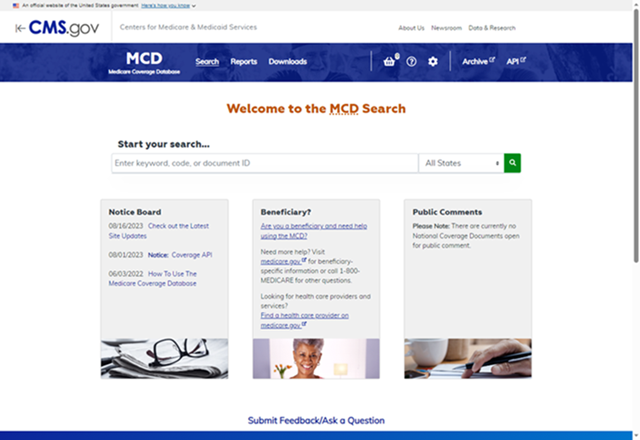
Figure 2: MCD Overview Page
Helpful Hint
Check the Notice Board. We update this space frequently, and you can see the newest alerts and latest changes to the database.Top Navigation Bar
You can see the top navigation bar while you search and access each MCD page. Hover your cursor over an option, and you’ll see an underline appear under the option.
The video below shows the cursor hovering over each option, and an underline that appears underneath.
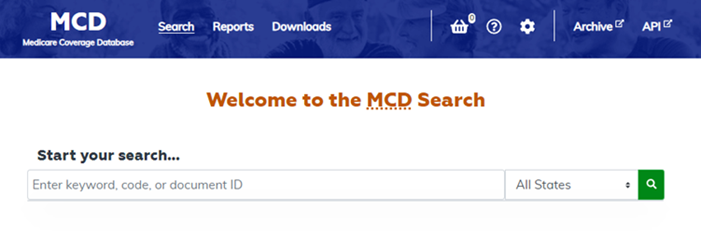
Figure 3: Viewing Options from the Top Navigation Bar
Throughout the database, the Back to Top arrow icon appears in the lower right corner of your page. Click it to quickly view the top of the MCD.

Figure 4: The Back to Top Arrow Icon
The Search option allows you to explore national and local coverage documents using criteria such as keyword, code, or document ID. You can learn more about search options in the Search section. The Reports tab in the top navigation bar includes a dropdown menu where you can select National Coverage and Local Coverage reports. You can learn more about accessing reports in the Reports section.
MCD Archive
You can find the Archive section by following the link to the Archive page next to the white gear icon for Settings. The MCD Archive allows you to find and read articles that are no longer in effect.

Figure 5: The Archive Button in the top navigation
Basket
Save documents from your search using the Basket tool. After you complete your search, you can view the documents or email them.

Figure 6: The Basket Icon
The video below shows where to find the Basket tool and how to click it, and the documents you saved in the Basket.
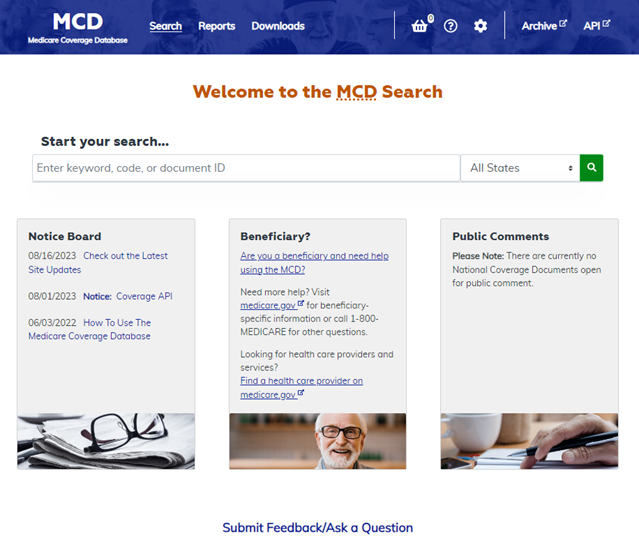
Figure 7: Using the Basket Tool
Add to Basket Function
You can add items to the Basket from the list of search results.
The video below shows the option to select documents and add them to the Basket by clicking the Basket icon in the Basket icon column. Click the Basket button for each corresponding article to add the item to the Basket. The Contract Type now appears under the contractor name in the Contractor column, when Local Coverage documents appear in search results.
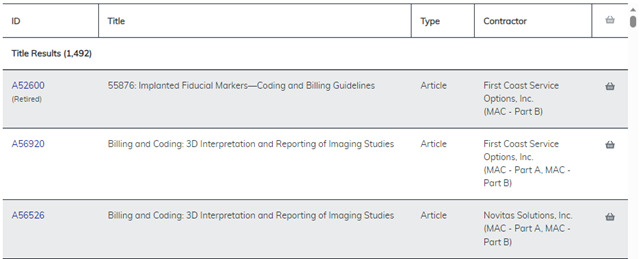
Figure 8: Finding the Basket Icon in the Basket Column
The Basket icon changes from grey to blue when you add a document to your Basket.
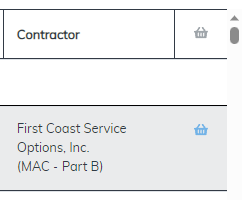
Figure 9: Basket Icon Shows Selection
To view the items in your Basket, click the Basket icon in the navigation bar.

Figure 10: The Basket Icon in the Navigation Bar
Email Basket Function
To email all the documents in your Basket, click the Email Basket button.
The video below shows how to use the Email Basket button to send items in the Basket to any email account.
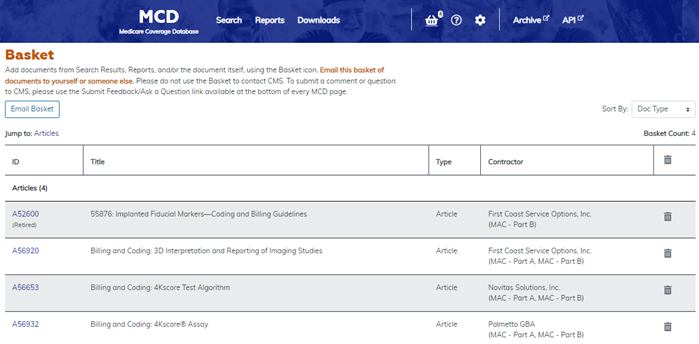
Figure 11: The Email Basket Button
Empty Basket Function
To empty the Basket, click the Trash Can icon at the top of the Empty Basket column to remove all contents.
The video below shows how to empty the Basket by clicking the Trash Can icon at the top of column to clear each item from the Basket.
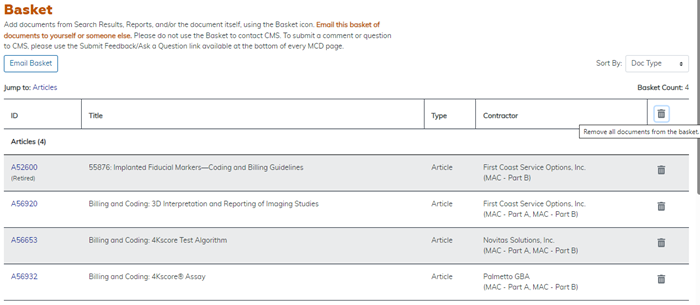
Figure 12: Removing All Documents from the Basket
To remove 1 or more documents, click the Trash Can icon in the document’s listing in your Basket.
The video below shows how to remove 1 item from the Basket by clicking the Trash Can icon in the row of the article you want to remove.
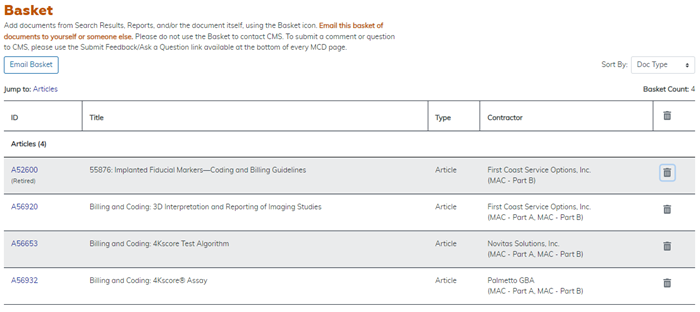
Figure 13: Removing 1 Document from the Basket
Once you click the Trash Can icon, you remove the document from the Basket.
The video below shows how to email the Basket contents and then click the Trash Can icon in the column to clear each article from the Basket.
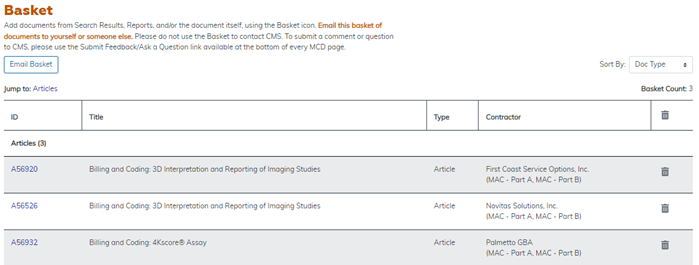
Figure 14: Basket Shows 2 Documents
MCD Document Types
The Medicare Coverage Database (MCD) is a searchable repository that has information related to what’s covered and not covered by Original Medicare. The documents in the database describe coverage at the national and local level. We list and describe document types briefly below. Find the Medicare Coverage Descriptions document on the Help & Resources page for more information on document types.
National Coverage Documents
National Coverage Determinations (NCDs) are national policy granting, limiting, or excluding Medicare coverage for a specific medical item or service.
Coding Analyses for Labs (CAL) is an abbreviated process, like the National Coverage Determination (NCD) process, for making changes to the coding component of the negotiated laboratory NCDs.
National Coverage Analysis (NCA) is a collection of documents that support the new review or a reconsideration of an NCD.
Medicare established the Medicare Evidence Development & Coverage Advisory Committee (MEDCAC) process to give independent guidance and expert advice to CMS on specific clinical topics. We use it to supplement our internal expertise and to ensure an unbiased and contemporary consideration of “state-of-the-art” technology and science.
A comprehensive Technology Assessment (TA) process supports each NCD and focuses on the quality of the evidence for a given technology.
CMS publishes Medicare Coverage Documents to help to relay coverage related information nationally.
Local Coverage Documents
A Local Coverage Determination (LCD) is a decision made by a Medicare Administrative Contractor (MAC) whether a particular service or item is reasonable and necessary, and therefore covered by Medicare within the specific jurisdiction of the MAC.
Before an LCD becomes final, the MAC publishes Proposed LCDs, which include a public comment period. For Proposed LCDs approved to display on the MCD on January 1, 2022, or later, we display an LCD Tracking Sheet as a pop-up, overlaying the Proposed LCD, which it supports.
Local coverage Articles are a type of educational document published by the MACs. Articles often contain coding or other guidelines related to a LCD.
Draft articles are written in support of a Proposed LCD. Once Medicare releases the Proposed LCD as a final LCD, a Billing and Coding article replaces the draft article.
The Help Icon: Help & Resources
Find the Help & Resources page by clicking the question mark icon.

Figure 15: The Help Icon
When you click the Help icon, in addition to the option of selecting the Help & Resources page, you can find a page-specific Page Help option, a Tour the Search option, a Tour the Reports option, and a Contact Us page.
You can follow along with the page tours by selecting either the Tour the Search or Tour the Reports options. If you have any questions, email us by selecting the Contact Us option.
The video below shows how to access the Help & Resources page by using the question mark icon in the upper right corner and selecting Help & Resources from the dropdown menu.

Figure 16: Selecting the Help & Resources Page
From there, you can find MCD data and archive information, including a How To Library, schedules, and other applications. Also, you can take a guided tour of the search feature by selecting Tour the Search.
The Settings Icon
The Settings icon, a white gear symbol to the right of the Help icon, gives you the choice to reset your search data. When you click it, the page explains that clicking OK resets the MCD search data, if the cache of search data didn’t refresh properly. The MCD should refresh automatically, but in case you would like to manually reset the cache, you can any time you choose.
The video below shows how to hover the cursor over each subject on the Help & Resources page and select the option you need.
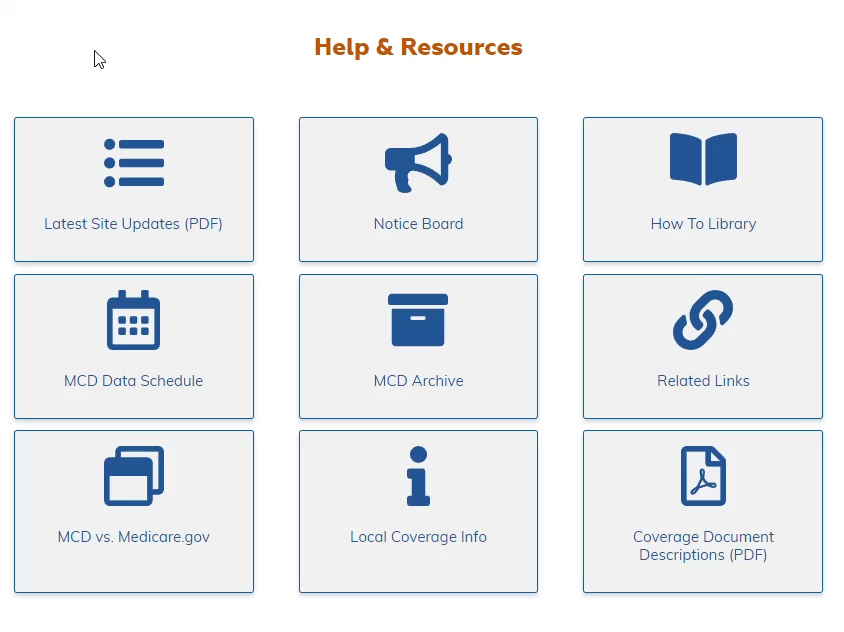
Figure 17: Help & Resources
On the Help & Resources page, the first tile option, Latest Site Updates, offers a full list of the newest features and updates you can find in the MCD. The other tiles include the Notice Board, the How To Library, MCD Data Schedule, the MCD Archive, Related Links, MCD vs Medicare.gov, and Local Coverage Info. The last tile option, the Coverage Document Descriptions, offers a handy guide that explains each type of document you can find in the MCD.
The MCD offers a Frequently Asked Questions (FAQ) modal. Access the feature by clicking on the Submit Feedback link on the bottom of every page or by selecting the Contact Us option in the Help icon of the navigation bar. Find answers to most of your questions there or submit feedback from the new modal.
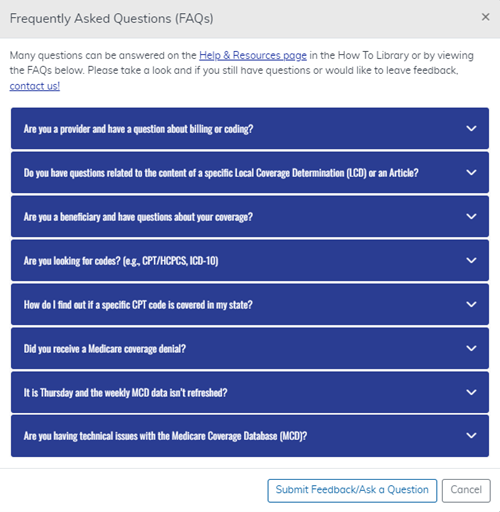
Figure 18: Frequently Asked Questions (FAQs) Modal
Page Help
The MCD offers a Page Help option under the Help icon in the top right corner of each MCD webpage, inside the navigation bar. You can click the Page Help option for assistance about the current MCD page.
The video below shows how to find the Page Help option under the Help question mark icon.
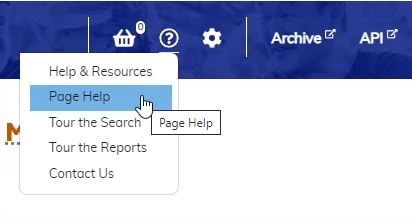
Figure 19: Using Page Help
The video below shows sample content found in the Page Help option for the MCD Search page.
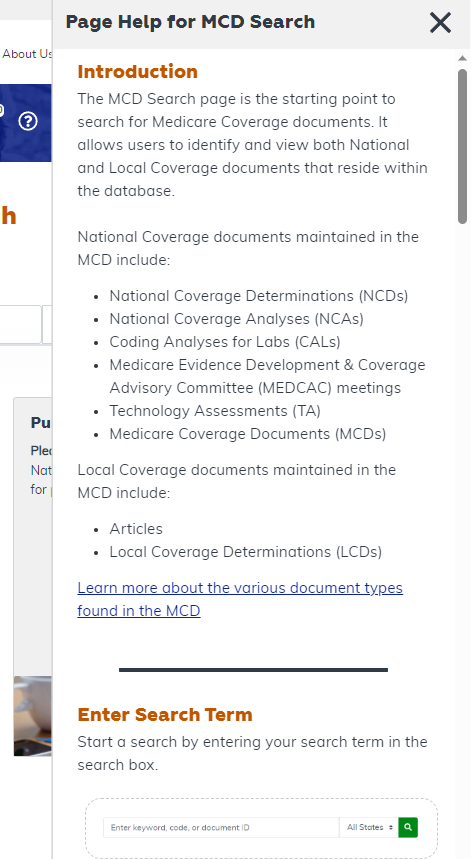
Figure 20: Using Page Help on the MCD Search Page
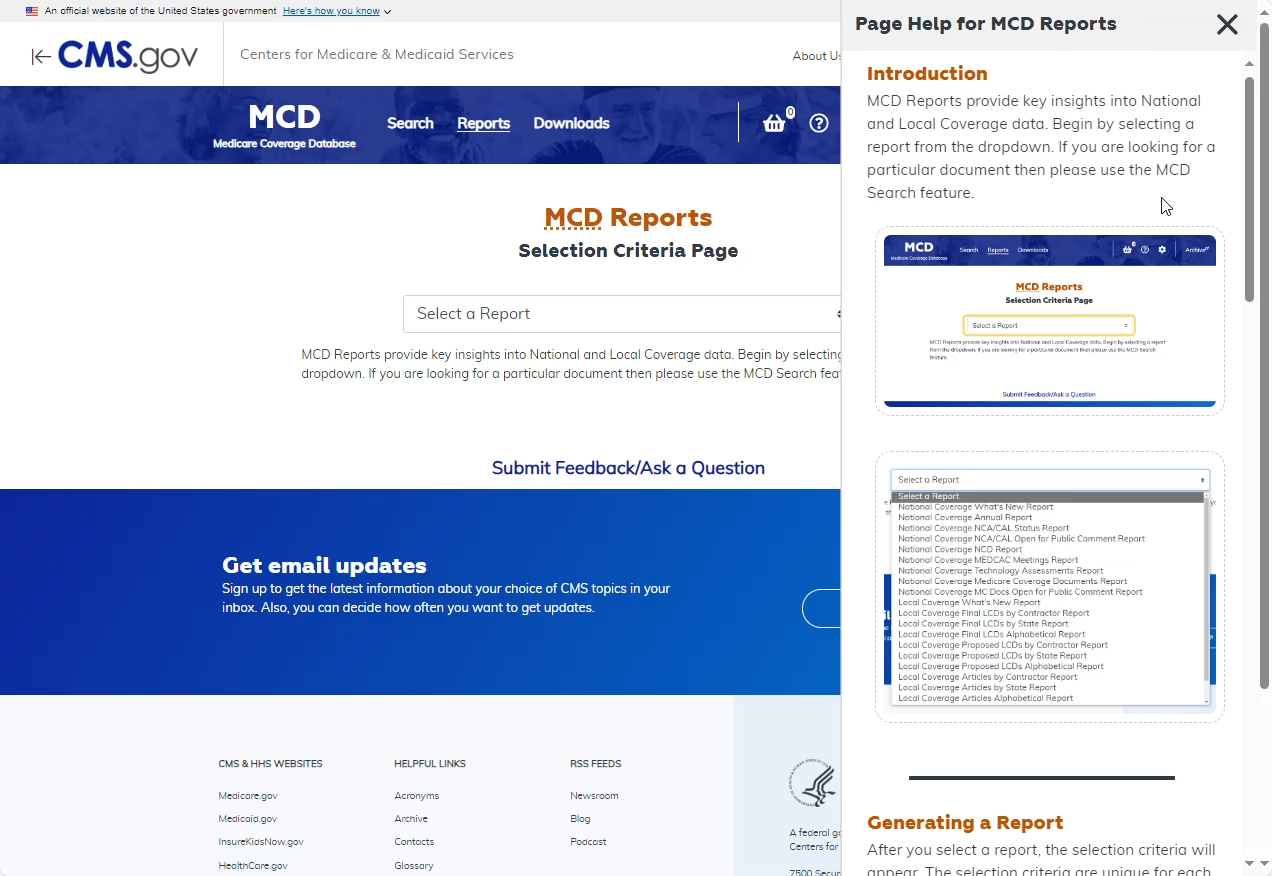
The video below shows the Page Help page from the MCD Reports option.